Use git worktree to open another branch without disturbing your work
Cause: Switching branches in your working folder can cause your edited files to overlap with files from another branch.
Fix: Open another branch in a separate folder with worktree to keep your current folder's changes in place.
Choose an unused folder name and a new branch name.
git worktree add -b hotfix ../hotfix mainThe new folder opens the committed state of main, while uncommitted changes stay in the current folder.

These screenshots show the actual commands and results. Select an image to open it at full size. On small screens, scroll sideways inside a wide image.
1. Check the work on your current branch
Check your current branch and modified files.
git status --short --branchThis capture shows an edited README on main. Worktree opens another branch of the same repository in a separate working folder. Use it to start a separate task, such as an urgent fix, while leaving your current edits in place. First, decide which commit or branch the new branch should start from.

Expected resultmain has an uncommitted README change.
2. Open another branch in a new folder
Choose an unused folder name and a new branch name.
git worktree add -b hotfix ../hotfix main
git worktree list
-b hotfix creates a new branch, and ../hotfix specifies a new working folder one level above the current folder. The final main is the starting branch. The new folder opens the committed state of main. Uncommitted changes in the current folder stay there. If the same branch is already in use by another worktree or the folder already exists, check the names and list, then choose a different unused name.

Expected resultThe hotfix branch opens in a new working folder.
3. Check each working folder's status
Check each folder's branch and change status separately.
git -C ../hotfix status --short --branch
git status --short --branch
-C runs a Git command in the specified folder. This capture shows a clean new hotfix folder, while the original main folder still has the README change. Also check that the original file contents are unchanged. The folders have separate working files and staging areas but share commit history and branches in the same repository. Prepare any dependencies or build outputs needed in the new folder separately.
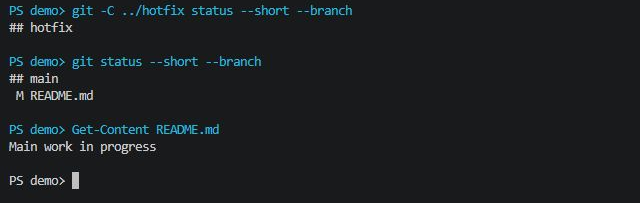
Expected resulthotfix is clean, and main's README change remains in place.
References
Another Git problem?
Stash new files along with your changes →
Fetch a remote branch to fix Git's invalid reference error →