Stash new files along with your changes
Cause: A regular stash saves changes to tracked files, so newly created files may remain in your working directory.
Fix: Add -u to temporarily stash untracked files too, then select and apply the stash when you resume work. Ignored files are not included.
git stash push -u -m "Pause draft"
git stash list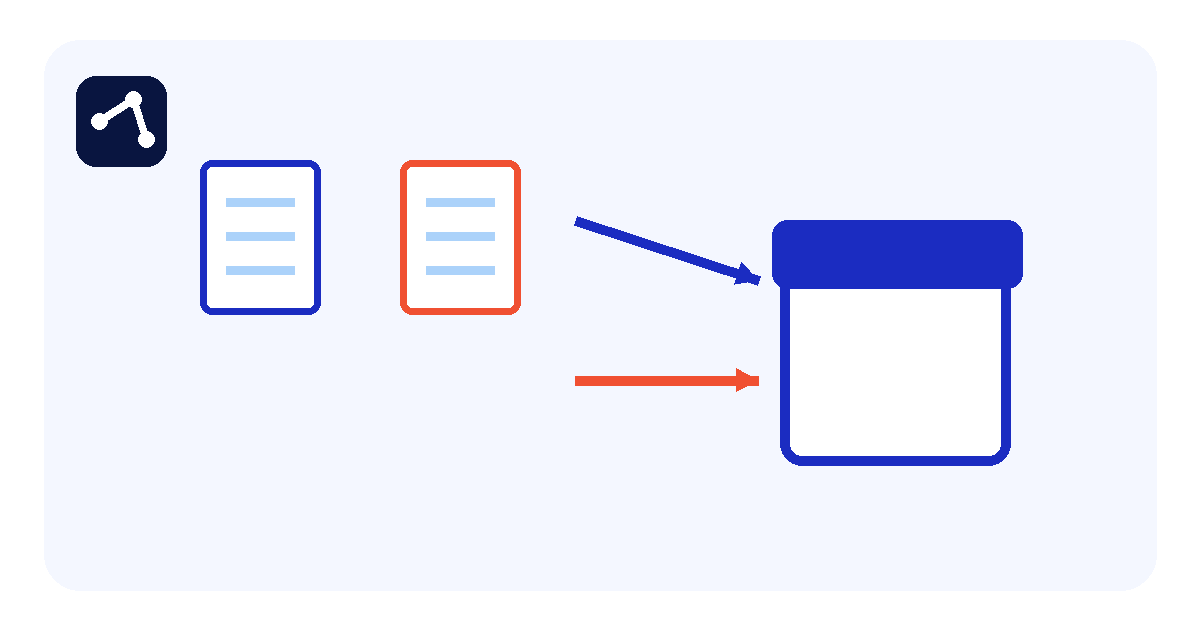
These screenshots show the actual commands and results. Select an image to open it at full size. On small screens, scroll sideways inside a wide image.
1. Identify modified and new files
In your project directory, check which files you want to stash first.
git status --shortHere, M README.md indicates a modified tracked file, while ?? draft.md indicates a new, untracked file. To stash new files too, use -u in the next step. Files excluded by .gitignore are not included, so check where any needed files are stored.

Expected resultThe README changes and the untracked draft file both appear.
2. Create a stash that includes new files
Give the stash a recognizable description.
git stash push -u -m "Pause draft"
git status --short
git stash list
-u includes untracked new files but excludes ignored files, and -m adds a description to help you find the stash. A Saved working directory message followed by an empty status output indicates that the changes have been stashed. If no stash appears or changes remain, check the command output and whether ignore rules apply. Review which files you need before deciding whether to include ignored files as well.
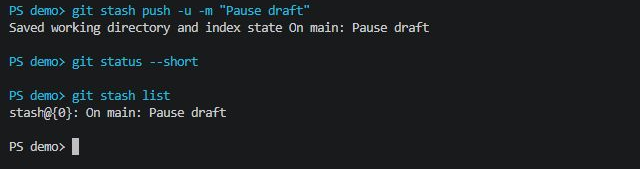
Expected resultThe status output is empty, and Pause draft appears in the stash list.
3. Apply the selected stash and check your files
Find the stash you want in the list before applying it. Here, select the most recent stash. Keep the name containing braces in quotes.
git stash apply 'stash@{0}'
git status --short
git stash list
apply restores changes to your working directory while keeping the stash. Here, the README changes and the new draft file return, and the stash remains in the list. Open the file to check the New draft content too. If conflicts occur, resolve the affected files instead of repeating the apply command. Applying a stash can cause conflicts if the branch or file state differs from when it was saved.
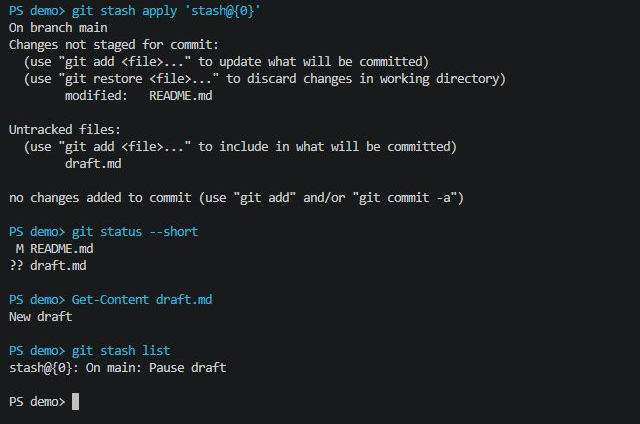
Expected resultThe new file and modified content return, and the original stash remains.
References
Another Git problem?
Use git worktree to open another branch without disturbing your work →