Resolve a Git merge conflict and finish the merge
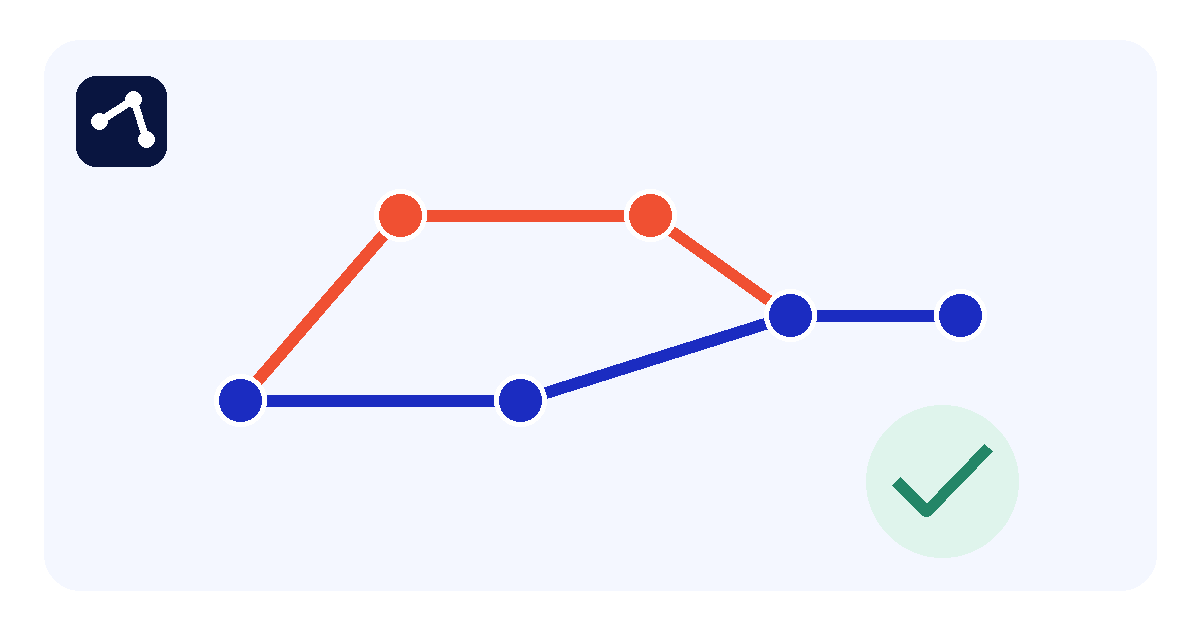
Cause: Two branches changed the same section differently, so Git could not decide the final content.
Fix: Choose the content to keep in each conflicting file, save it, then stage the resolved files and create a merge commit. Replace the filename below with your actual conflicting file.
git add notes.txt
git commit -m "Resolve notes conflict"
If other files still have conflicts, resolve them before committing.
These screenshots show the actual commands and results. Select an image to open it at full size. On small screens, scroll sideways inside a wide image.
1. Check the conflicting file and both changes
If you see CONFLICT (content) and Automatic merge failed, check the conflicting files first.
git status --shortUU notes.txt identifies a file whose contents Git could not merge. Open it in an editor to see both versions between the <<<<<<<, =======, >>>>>>> markers. The current branch changed the color to blue, while the feature branch increased the size. Read the whole file before deciding what to keep.
To cancel the merge, check that your pre-merge work is safely stored before using git merge --abort. If you had uncommitted changes before merging, check what can be restored first.
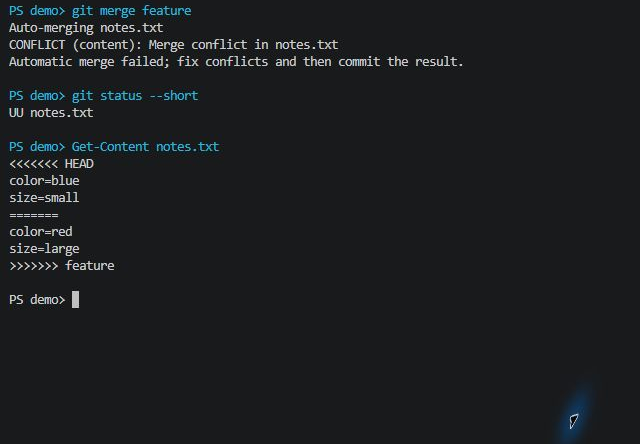
Expected resultUU notes.txt and conflict markers appear, showing the color and size changes from both branches.
2. Save the final content and create a merge commit
Combine the content you want to keep into one file and remove all conflict markers. In this example, keep color=blue and size=large. The Set-Content command shown saves this short example file with those two lines. In a real project, review the rest of the file in an editor before saving.
git diff
git add notes.txt
git commit -m "Resolve notes conflict"
Use git diff to review the saved content, then git add to mark the file as resolved. git commit creates a merge commit joining both histories. If other files still have conflicts, resolve them before committing.
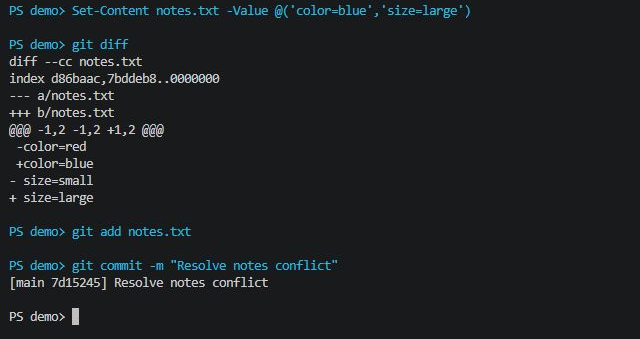
Expected resultA merge commit named Resolve notes conflict is created.
3. Check the working tree and merge history
After merging, check that the conflict is gone and both branches' commits remain.
git status --short --branch
git log --oneline --graph --decorate -4
The capture shows no changed files below ## main, and both Change color and Increase size remain in the graph. Open the file and check for color=blue and size=large too. The Get-Content notes.txt command displays the file's content. If you resolved a conflict in actual code, test or run the affected feature before pushing.
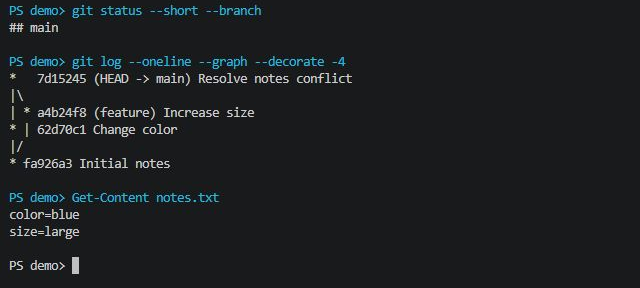
Expected resultThe working tree is clean, both branches' commits remain, and the file contains both selected values.
References
Another Git problem?
How to fix a git push non-fast-forward error →