How to fix a git push non-fast-forward error
Cause: The remote repository has commits (change history) missing from your branch. Git blocks the push to protect that history from being overwritten.
Fix: Fetch, merge, then push again to include the remote history in your branch.
Run these commands one line at a time on main after committing your changes. Stop if a command fails.
git fetch origin
git merge --no-edit origin/main
git push origin main
If you use another branch, replace main with its name.
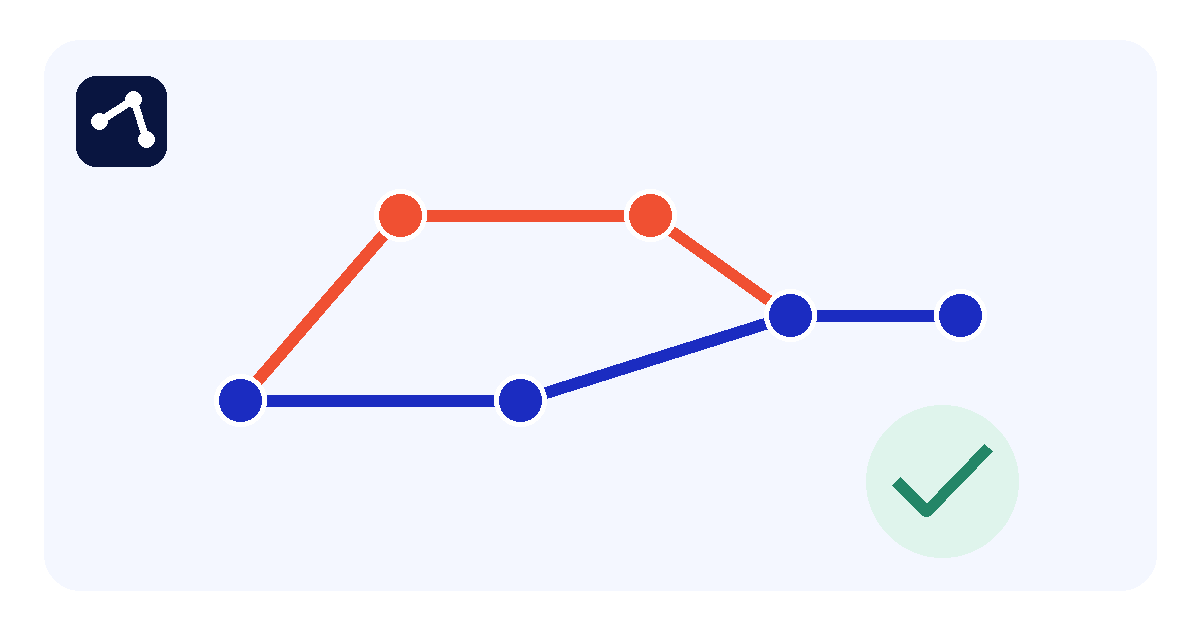
These screenshots show the actual commands and results. Select an image to open it at full size. On small screens, scroll sideways inside a wide image.
1. Check the cause and your working state
If someone else pushes while you are working, the remote gains new commits. Pushing without those commits in your branch is rejected as non-fast-forward. This does not mean a file conflict has already occurred.
In a terminal in your repository folder, check your current branch and changed files.
git branch --show-current
git status --short --branch
If your branch is not main, replace main with its name in later commands. If you see M, A, ??, commit the changes you need first.
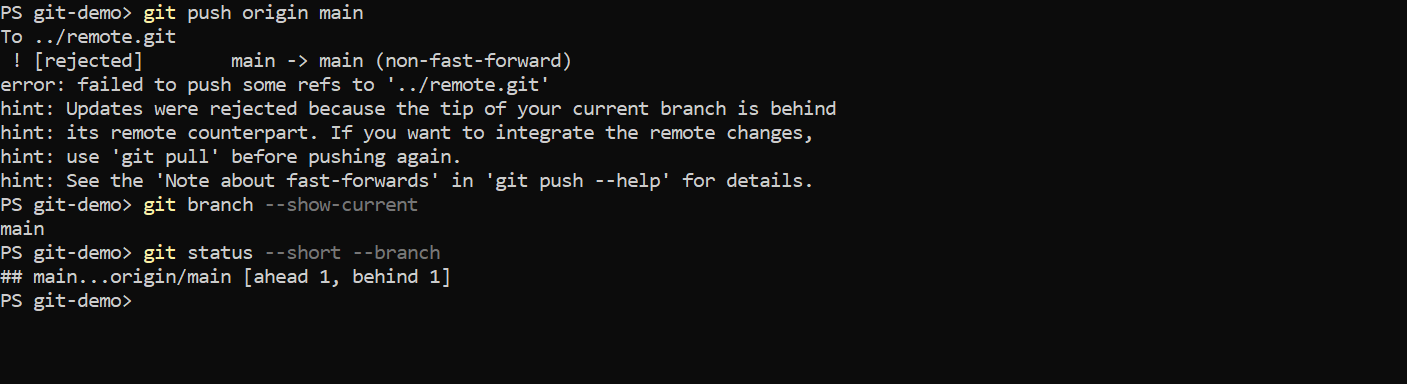
Expected resultContinue if the first command returns main and no changed files appear below the ## status line.
2. Save a branch name for your commits
Create a backup branch pointing to your current commit. This does not switch your current branch.
git branch backup/non-fast-forward
git branch --list
If that name already exists, keep the existing backup and use a new name such as backup/non-fast-forward-2. Uncommitted files are not included in this backup.

Expected resultThe list shows both backup/non-fast-forward and * main.
3. Fetch remote changes
Fetch downloads new commits from the remote. It does not merge them into your files yet.
git fetch origin
git log --oneline --graph --decorate --all -5
If your main and the remote's origin/main have diverged as shown, merge them in the next step. If fetch fails with an authentication or address error, stop here and resolve that error first.

Expected resultYou see Add my note and Add team note separately, with their shared starting point, Initial shared commit, below them.
4. Merge remote changes
Merge combines your work with the remote change history. --no-edit uses the default merge message without opening an editor.
git merge --no-edit origin/mainThe merge completed automatically in this screenshot. If CONFLICT appears, do not push. If you started with all changes committed, cancel the merge with git merge --abort and review both sides of the conflicting files. refusing to merge unrelated histories is a separate problem; do not continue this procedure.

Expected resultMerge made by the 'ort' strategy indicates a successful merge. The remote's team-note.txt has been added.
5. Push again
After the merge succeeds, push to the remote.
git push origin mainIf non-fast-forward appears again, new commits may have reached the remote while you were working. Check again starting with fetch. Do not use --force here because it can overwrite remote history.
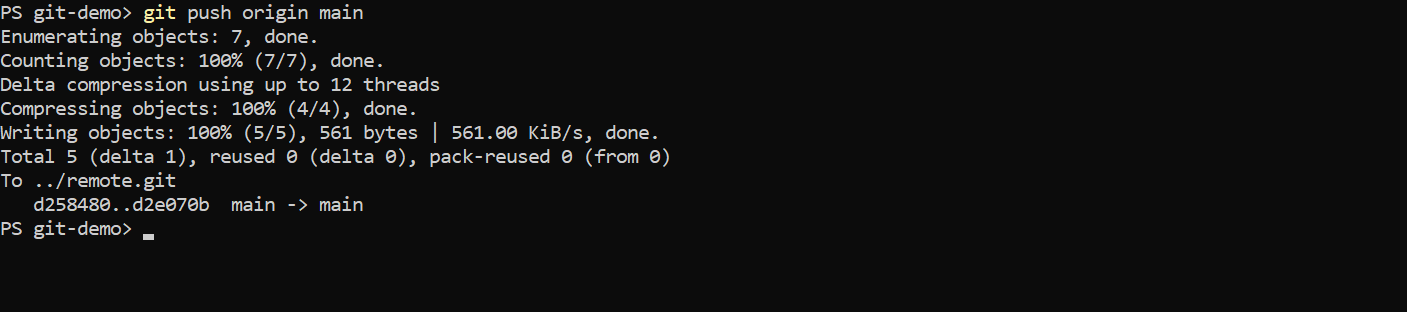
Expected resultThe push succeeds when [rejected] no longer appears and the output shows a commit range and main -> main.
6. Confirm the push succeeded
Finally, check that your branch and the remote are in sync.
git status --short --branch
git log --oneline --graph --decorate -4
The ## main...origin/main line should have no ahead, behind indicators, and no changed files should appear below it. Check that HEAD -> main and origin/main both appear on the merge commit.
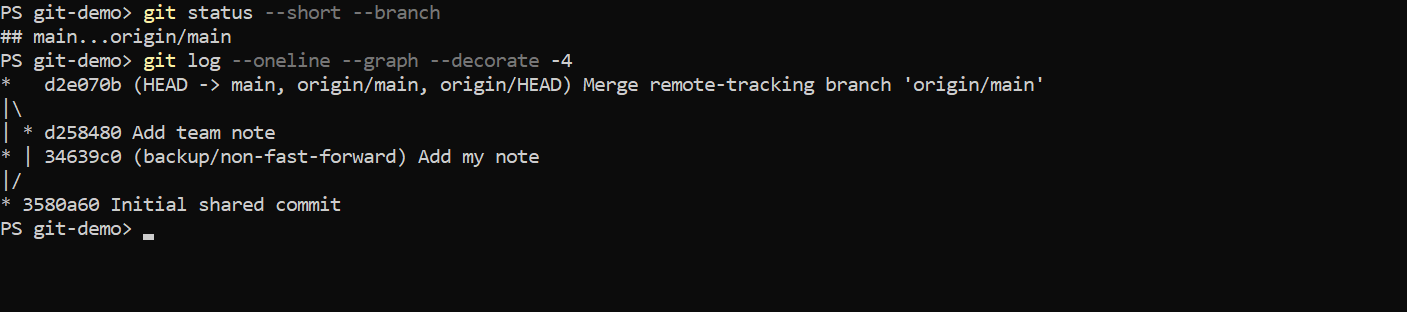
Expected resultThe remote and your main point to the same commit, with both Add my note and Add team note preserved.
References
Another Git problem?
Resolve a Git merge conflict and finish the merge →
Fetch a remote branch to fix Git's invalid reference error →