Trace file history and renames with Git log
Cause: Filtering the log by a file path may not show the history from before the file was renamed.
Fix: Follow one file across renames with git log --oneline --follow -- guide.txt. Use git show to inspect the actual changes in a commit.
git log --oneline --follow -- guide.txt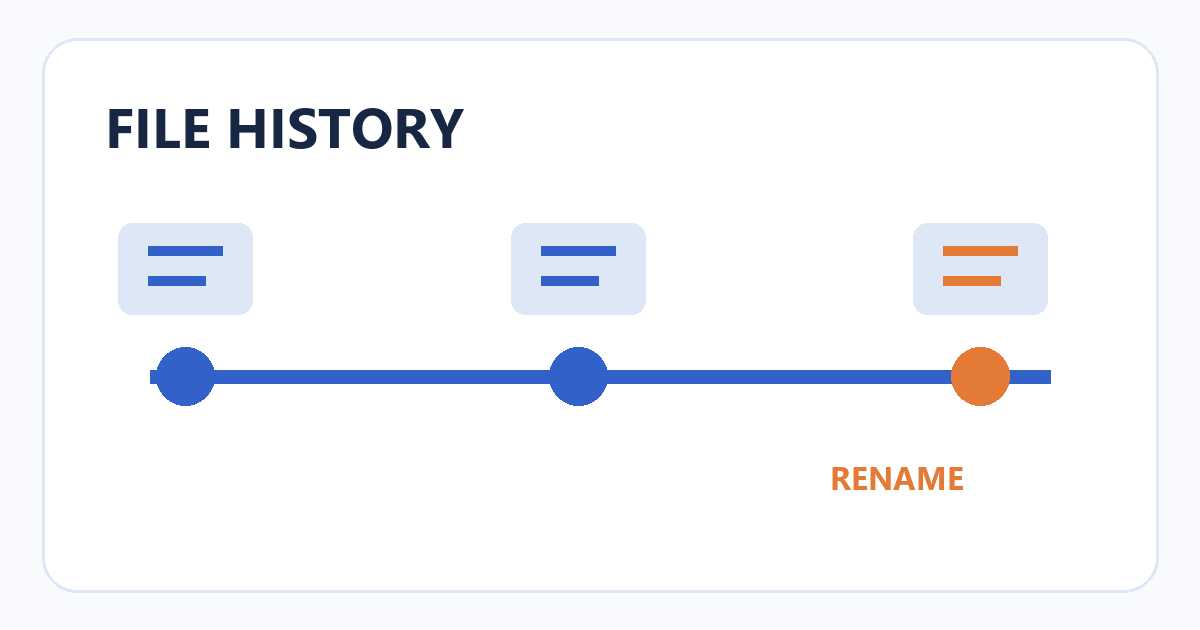
These screenshots show the actual commands and results. Select an image to open it at full size. On small screens, scroll sideways inside a wide image.
1. Check the commit history for the current path
Run the command in your repository folder using the path of the file you want to check. In this example, notes.txt was committed twice and then renamed to guide.txt.
git log --oneline -- guide.txt--oneline displays each commit's hash and title on one line. The path after -- filters the log. In this example, only the rename commit that created the current path appears. For files in project subfolders, use their actual paths.

Expected resultThe rename commit for the guide.txt path appears.
2. Follow the history from before the rename
Add --follow for the same path.
git log --oneline --follow -- guide.txtThe history appears in this order: Rename notes to guide, Finish notes, Initial notes. --follow traces one file back through renames. Do not pass multiple files at once. If the file's contents and path have changed substantially, Git's rename detection may not identify the rename correctly, so check the previous path separately too.
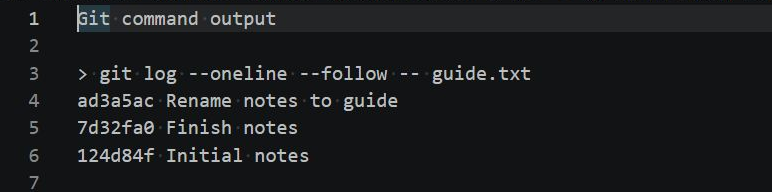
Expected resultThe history includes changes to notes.txt from before it became guide.txt.
3. Inspect the actual changes in a commit
Once you find a commit of interest in the log, inspect it with git show. In this example, HEAD~1, the parent of the current commit, changed the file's contents. Its path at that time was notes.txt.
git show --format=oneline HEAD~1 -- notes.txtThe output shows status=draft changing to status=ready. In your own repository, use the commit hash from the log and the file path at that point in history. Viewing logs and changes does not modify working files.
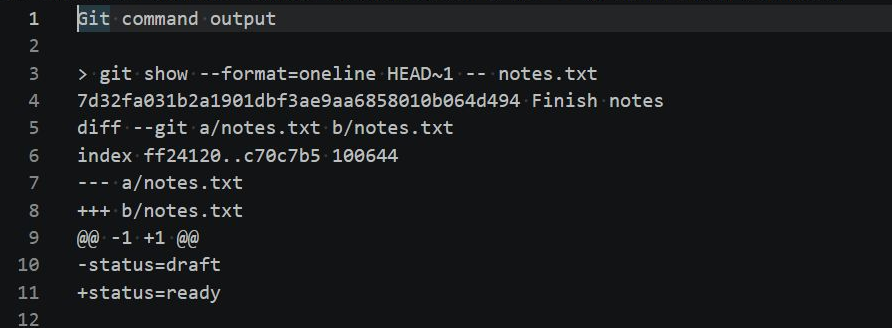
Expected resultThe output shows status=draft changing to status=ready under the previous path.
References
Another Git problem?
Compare staged changes and working files with Git diff →